How to Customize an I Spy Wedding Game Template in Canva
Weddings are a whirlwind of emotion, logistics, and celebrating love. As a guest, it’s easy to feel like you’re just part of the scenery until the dance floor opens up. That’s where interactive elements come in. An "I Spy" wedding game is a brilliant way to get guests mingling, snapping photos, and creating memories from their own perspective. But as a business owner—whether you’re a wedding planner, a stationery designer, or an event coordinator—offering a generic, off-the-shelf version just doesn’t cut it. You need something that aligns with a specific brand, a unique theme, or a client’s vision. The challenge? Creating a custom, polished game card from scratch is time-consuming and can be costly if you’re outsourcing graphic design for every single event.
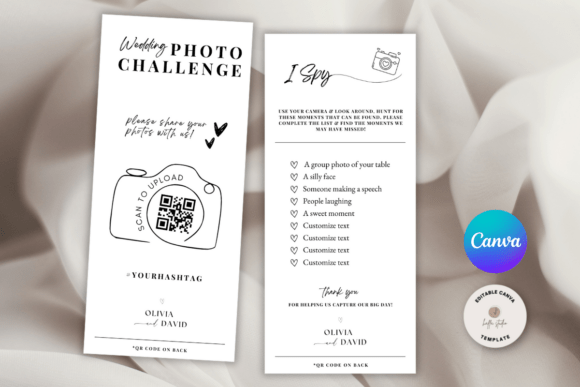
Enter the I Spy Wedding Game Template. This isn’t just a PDF you print and hope for the best. This is a fully editable digital asset designed to be customized in Canva, the free online design platform that’s become a staple for entrepreneurs and creatives alike. The beauty of this approach is its simplicity and flexibility. You’re not locked into a static design. Instead, you start with a professionally crafted foundation—a 4x9 template size that’s perfect for tent cards, table menus, or standalone game sheets—and then make it entirely your own. The entire process happens in your web browser. No software to install, no steep learning curve. Just a free Canva account and a clear idea of what you want to achieve.
Why a Digital, Editable Template Changes the Game for Your Business
For a small business owner or a freelance designer, time is your most valuable asset. Starting every project from a blank canvas is inefficient. This template solves that by providing a structured, visually appealing starting point that respects your creative process. The files you receive after purchase are a .zip containing a PDF that links directly to the Canva template. Once you open it in Canva, you’ll see that every single element is editable. This means you can change the wording to fit a specific couple’s story or a themed event—think "Find something blue" for a classic wedding or "Spot the vintage camera" for a retro-themed celebration.
But the customization goes far deeper than text. You can adjust the font style, color, size, and placement. Is the default script font too whimsical for a sleek, modern wedding? Swap it out for a clean sans serif. Does the color scheme clash with the bridal party’s palette? Change it in seconds. You can even delete elements entirely to simplify the design or add new ones, like a subtle background pattern or a decorative border. Perhaps the most powerful feature for professionals is the ability to add your own logo. This transforms the template from a simple game card into a branded touchpoint. When you hand this to a client, it’s not just a fun activity; it’s a piece of your business’s professional presentation, reinforcing your brand identity with every table setting.
From Screen to Paper: Practical Printing and Application
A beautifully designed file is only as good as its final printed form. The flexibility of this digital template extends to how you choose to produce the physical game cards. You have two straightforward paths. The first is printing at home. If you have a reliable color printer and some quality cardstock, you can produce small batches quickly. This is ideal for last-minute additions, sample proofs for a client meeting, or for designers who enjoy having complete control over the process from start to finish.
The second path is professional printing, and it’s easier than you might think. You can save your finalized Canva design as a high-resolution PDF and take it to a local print shop, an office supply store like Staples or Office Depot, or upload it to an online service like Vistaprint. Professional printing ensures consistent color, sharp text, and a variety of paper finishes—from matte to glossy—that can elevate the tactile experience of the game. This is particularly valuable if you’re creating these for a high-end client or as part of a larger stationery suite. The 4x9 size is versatile; it works perfectly as a tented card for each table setting, a standalone card at the bar, or even a fun insert for the wedding program.
Designing with Purpose: Beyond the Wedding Game
While the core function is clear, the value of this editable template extends into other areas of creative business. Think of it as a modular design asset. The clean layout and editable nature make it a fantastic starting point for other projects. For instance, a wedding planner could adapt the template to create a "Wedding Day Timeline" card or a "Menu Card" with a similar aesthetic, ensuring visual consistency across all print materials. A graphic designer could use the structure to prototype other interactive table elements, like a "Find Your Seat" scavenger hunt or a "Couple's Trivia" game.
For content creators and bloggers in the wedding niche, this template offers a practical lead magnet idea. You could create a series of customizable "Wedding Guest Activity" templates and offer them as a downloadable freebie on your website, capturing email addresses while providing genuine value. The ability to tailor the design to different wedding themes—rustic, bohemian, minimalist, glamorous—makes it a versatile resource for your audience. It’s a tangible product that solves a real problem for couples and planners, which is the essence of good marketing.
Making It Work: A Quick-Start Guide to Canva Editing
If you’re new to Canva, don’t be intimidated. The platform is designed for intuitive use. Here’s a practical walkthrough to get you from purchase to a finished, customized game card.
- Access Your Template: After purchasing, download the .zip file and open the PDF inside. It will contain a direct link to the Canva template. Click it, and it will open in your Canva account (or prompt you to create a free one).
- Understand the Layers: On the left side of the Canva editor, you’ll see the template broken down into individual elements. Click on any text box, image, or shape to select it. A toolbar will appear at the top, giving you editing options.
- Edit Text: Double-click any text box to highlight the words. Type your new text. Use the top toolbar to change the font, size, color, alignment, or spacing. You can also move the text box by clicking and dragging it.
- Change Graphics and Colors: Click on any colored shape or background. Use the "Color" tile in the top toolbar to select a new hue. To add a new element, click "Elements" in the left sidebar to browse lines, shapes, icons, and illustrations.
- Add Your Branding: To add your logo, go to "Uploads" in the left sidebar, upload your logo file (PNG with a transparent background works best), and drag it onto your design. Resize and position it as needed.
- Finalize and Download: Once you’re happy, click "Share" in the top right, then "Download." For printing, choose "PDF Print" to ensure high quality. For digital use (like emailing a proof to a client), "PNG" or "JPG" will work perfectly.
This process puts professional design within reach, regardless of your technical skill level. It’s about having a smart starting point and the freedom to execute your vision without barriers. Whether you’re finalizing details for a client’s big day or building a suite of digital products for your own business, this editable I Spy Wedding Game Template is a practical tool that saves time, ensures quality, and lets your creativity take the lead. It’s a small piece of the larger puzzle of creating memorable, branded experiences—one that guests will actually enjoy participating in.